Intercom integrations: Connect support to your marketing stack
The Intercom integration lets you embed a typeform directly inside Messenger, so support conversations collect responses without a separate form.

At Typeform, we’re keen on conversations. So naturally, we’re big fans of Intercom.
Intercom helps businesses communicate with customers across Messenger and other support channels, while its customer service tools help teams deliver more relevant conversations.
The Typeform-Intercom integration brings those conversations together by letting you embed a typeform directly into Intercom Messenger.
A customizable button appears inside the conversation, inviting customers to fill out the typeform without leaving Messenger. They can complete the form directly within the window, and your team receives a notification in Intercom when it’s submitted.

Instead of collecting each piece of information through separate chat messages or sending customers to a form in another window, you can gather responses through a typeform inside the Messenger experience.
Now, you can ask all the questions in one typeform—and they can have a conversation within a conversation.
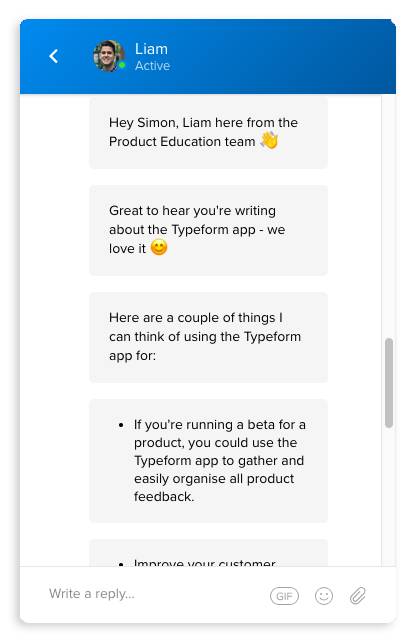
What can I do with the Typeform-Intercom integration?
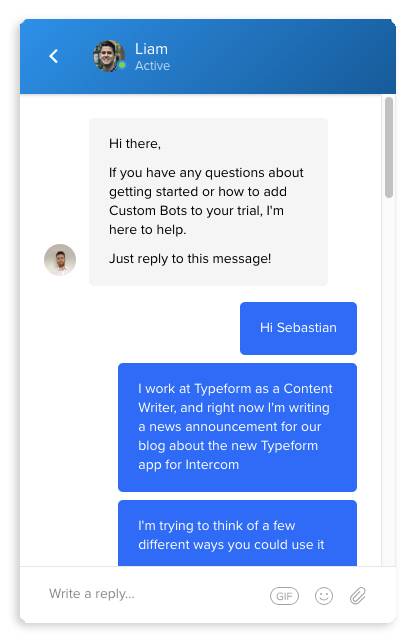
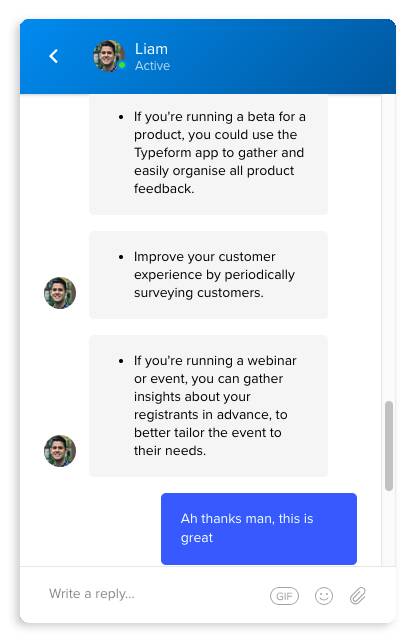
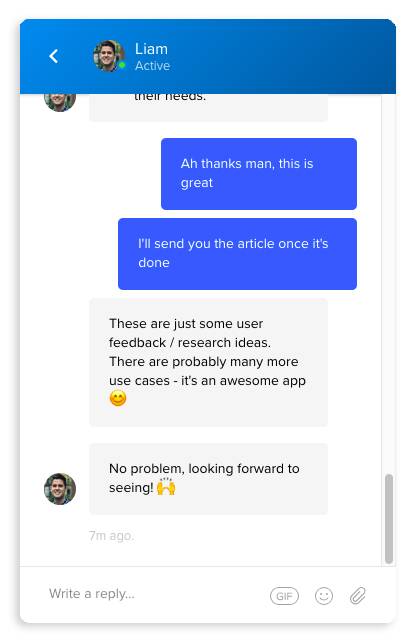
We asked Intercom’s live chat support on their homepage and here’s what they said:
How do I set it up?
Getting typeforms into Intercom Messenger is easy. To start, you need a typeform, an Intercom account, and a website where you’ll embed Intercom Messenger.
In Intercom, open your Messenger settings and choose the option to customize Messenger with apps. From there, open the App Store, search for Typeform, and install the Typeform app.
Once the app is connected, add Typeform to your Messenger, choose the typeform you want to use, and customize details such as the block title, subtitle, and button text. You can then save and set the Messenger experience live.
Agents can also share typeforms during an active Intercom conversation by selecting Typeform from the available Messenger shortcuts and choosing the form they want to send.
Not quite crystal clear? Check out Typeform’s Intercom Messenger integration setup guide for detailed steps.

Liked that? Check these out:

Opinions and Expertise
What’s actually slowing research teams down (Hint: it’s not the research)
From recruiting participants and scheduling interviews to building the actual surveys, the operational drag is taking researchers away from what they do best. See what's actually slowing them down and how Research Flow fixes it.
Read more